How to Convert a WhatsApp Voice Message to Text
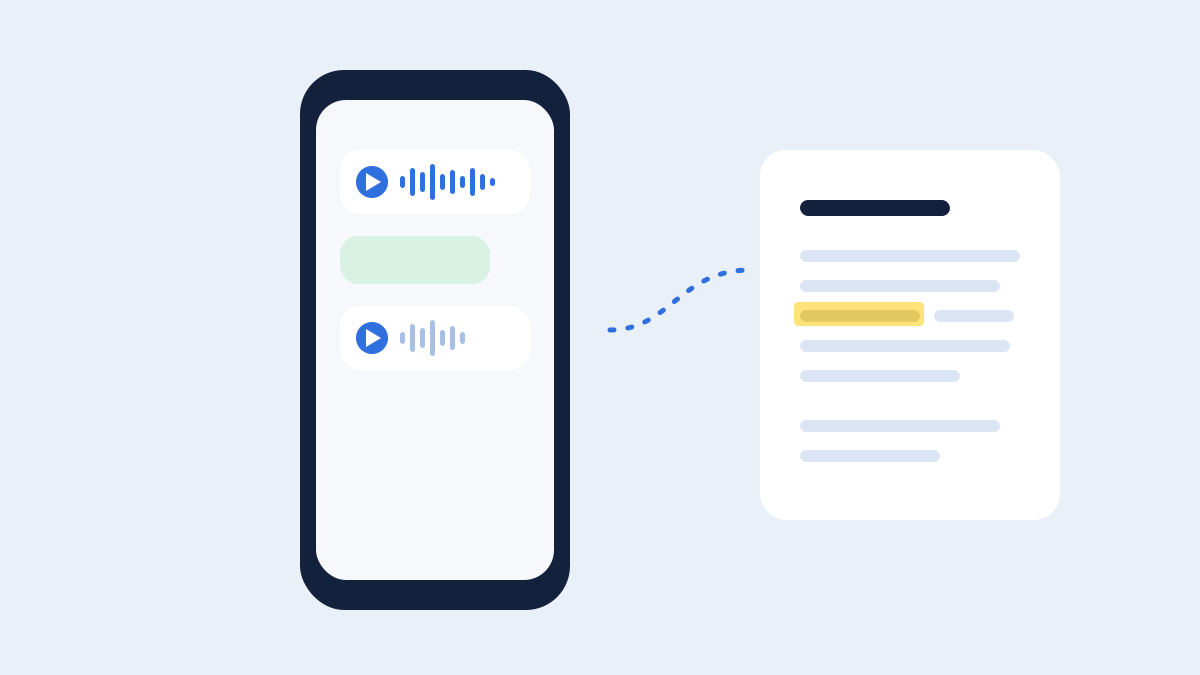
Long voice messages are easy to send and hard to receive. You may be in a meeting, on a train without headphones, or you simply want to find what someone said last week without listening to six minutes of audio again. Turning the voice message into text solves all three.
This guide shows how to save a WhatsApp voice message as a file and convert it to text with Speecher, a free speech to text tool that runs in the browser. It works on a phone or a computer and does not need an account.
Step 1: Save the voice message as a file
WhatsApp stores voice messages as audio files, usually in the OPUS format. You first need to get that file out of the chat.
On Android
- Open the chat and tap and hold the voice message until it is selected.
- Tap the share icon at the top of the screen.
- Choose where to save it, for example your Files app, Google Drive, or an email to yourself.
On iPhone
- Open the chat and tap and hold the voice message.
- Choose Forward, then tap the share icon in the bottom corner.
- Select Save to Files and pick a folder.
The saved file usually ends in .opus. Depending on the phone it can also be .ogg or .m4a. Speecher accepts all of them, so there is no need to convert the file first.
Step 2: Upload it to Speecher
- Open speecher.app on the same phone or on a computer.
- Drop the file on the upload area, or tap it to choose the file.
- Pick the language that is spoken in the message. Choose the language of the recording, not the language you want to read it in.
- Press Convert to text.
If the message is in Turkish, Spanish, German or another language with its own page, you can start from that page instead, for example Turkish speech to text. The language is then selected for you.
Step 3: Read, copy or download the text
The transcript appears on the page with punctuation. You can copy it with one click or download it as a .txt file. If you are signed in, the text is also saved to your profile so you can find it later.
Longer messages are split into one-minute parts and transcribed one after another, so the text fills in step by step while you watch.
Tips for a better transcript
- Choose the right language. This makes the biggest difference. A Spanish message transcribed as Portuguese will come out wrong.
- Background noise is usually fine. Street or café noise rarely changes the result much. In our own test, an English recording with heavy added noise came out with a single wrong word.
- Check names and rare words. Names of people, places and brands are where mistakes are most likely.
- One speaker at a time works best. If several people talk over each other in the background, those parts may be missed.
What about WhatsApp's own transcripts?
WhatsApp can show transcripts for voice messages on some phones and in some languages. If that works for you, it is the fastest option. Speecher is useful when your language or device is not supported, when you are on a computer, or when you want the text as a file you can copy, save and share.
Frequently asked questions
Is it free?
Yes. Converting a voice message to text on Speecher is free and does not need an account.
Which audio formats work?
OPUS (the WhatsApp format), MP3, M4A, MP4, WAV, OGG and WEBM.
What happens to my audio file?
See the privacy policy for how uploaded files are handled.